
The passage tooltip
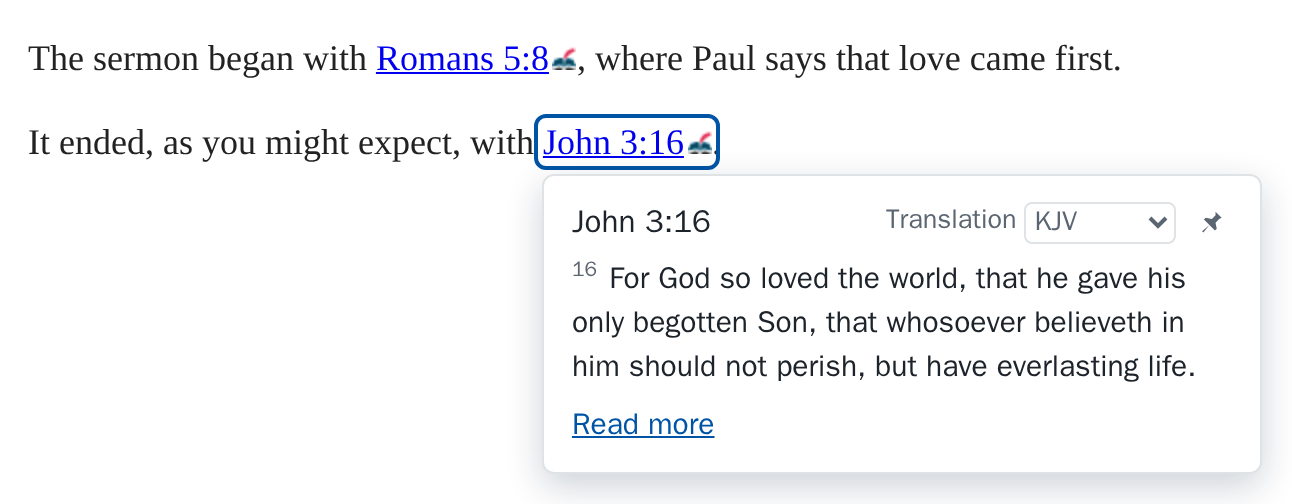
The tooltip shows a reference's passage on the page you're reading.
Opening it
- With a mouse: rest the pointer on the link for a moment.
- On a touch screen: tap the link. The first tap opens the tooltip instead of following the link.
- With the keyboard: move to the link with Tab.
The link you are looking at is outlined, so you can tell which one the tooltip belongs to when a passage is mentioned more than once.
What it shows
- The translation menu and the pin. You can make its text larger or smaller from the toolbar popup.
- The passage, up to 12 verses. A longer passage ends with “…”. When the passage is taller than the tooltip, it scrolls inside it, while the reference, the translation menu, the pin and Read more stay in view.
- The credit the translation's publisher asks for, where there is one.
- Read more, which opens the whole passage in a new tab, in the reader you chose under where links go.
If the translation doesn't have the passage (some number their verses differently or leave books out), the tooltip says so, and you can choose another.
Closing it
Move the pointer away, press Esc, or click or tap somewhere else. To stop it closing, pin it.